A mower that cuts on schedule but disappears from the app is frustrating because the yard still looks handled while your controls feel out of reach. If your robot mower app won’t connect, the fix usually depends on which link has failed: Bluetooth, Wi-Fi, cellular service, account binding, or firmware. Work through the connection path in order and you can usually avoid the nuclear option of a full reset.
Start with the simplest checks first. Most app issues are not mowing-system failures; they are handoff problems between the phone, mower, charging station, router, and cloud account.
The short version
A robot mower can mow normally while the app fails because the mowing schedule, map, or boundary data may already be stored on the mower or charging system. App connection problems are usually separate from cutting performance, so troubleshoot the connection method before changing mowing settings.
- Bluetooth problems are usually local: phone permissions, pairing state, distance from the mower, or another phone still being connected.
- Wi-Fi problems usually involve the router band, password, signal strength near the dock, or a changed network name.
- Cellular or cloud problems depend on the mower’s communication module, account status, service coverage, and the brand’s server connection.
- Firmware problems can block pairing, app login, or feature access until the mower, app, or charging station updates properly.
- Account-binding problems happen when a mower is already tied to another owner, phone, household account, or dealer setup.
Step 1: Identify which connection you are trying to fix
Do not treat “the app is offline” as one problem. Open the app and note the exact symptom before changing anything. A mower that will not appear during first setup is different from a mower that appears as offline after weeks of normal use.
- Bluetooth pairing failure: the app cannot find the mower when you are standing next to it, or pairing starts and then drops.
- Wi-Fi setup failure: the app finds the mower locally but cannot add it to the home network.
- Offline after setup: the mower was previously connected, but now the app shows no live status or remote control.
- Account error: the mower appears registered to another user, or the app asks for ownership transfer or authorization.
- Firmware loop: the app connects briefly, starts an update, then disconnects or refuses to continue.
This first split matters because it prevents random resetting. A factory reset can sometimes remove useful settings, saved maps, or installation data depending on the mower, so keep that as a later step unless the manufacturer’s app specifically directs it.
Step 2: Fix Bluetooth pairing first
Bluetooth is usually the close-range connection used for first setup, local control, or waking the mower in the app. Stand near the mower and charging station, unlock the mower if it has a keypad or PIN screen, and keep the app open while pairing.
Check phone permissions
On iPhone and Android, mower apps often need Bluetooth permission, location permission, and local network access to discover nearby devices. Location permission can sound odd for a lawn mower, but phone operating systems often require it for Bluetooth and Wi-Fi device discovery. Open your phone settings, find the mower app, and allow the permissions the app needs for setup.
Clear stale pairings
If the mower was paired to a previous phone, an old household member’s account, or a dealer setup device, it may not pair cleanly with your phone. In your phone’s Bluetooth menu, forget the mower if it appears there. Then close the mower app fully, reopen it, and start pairing from inside the app rather than from the phone’s general Bluetooth screen unless the manufacturer says otherwise.
Restart in the right order
Restart the phone, then power-cycle the mower using the normal shutdown method in the manual. If the charging station is part of the communication system, disconnect it only as instructed by the manufacturer. After everything restarts, keep other nearby phones from trying to connect at the same time. Bluetooth pairing can be surprisingly territorial; two phones in the garage can turn a simple setup into a tug-of-war.
Step 3: Check Wi-Fi band, password, and signal at the dock
Many robot mowers and outdoor smart devices use 2.4 GHz Wi-Fi for setup or ongoing connectivity, while some home routers combine 2.4 GHz and 5 GHz under one network name. Check your mower manual or app instructions before changing router settings. If your mower requires 2.4 GHz, make sure your phone is also connected to the correct network during setup.
- Network name: avoid choosing a guest network unless the manufacturer supports it, because guest networks may block device-to-phone communication.
- Password: retype it carefully, especially if it includes special characters, spaces, or recently changed credentials.
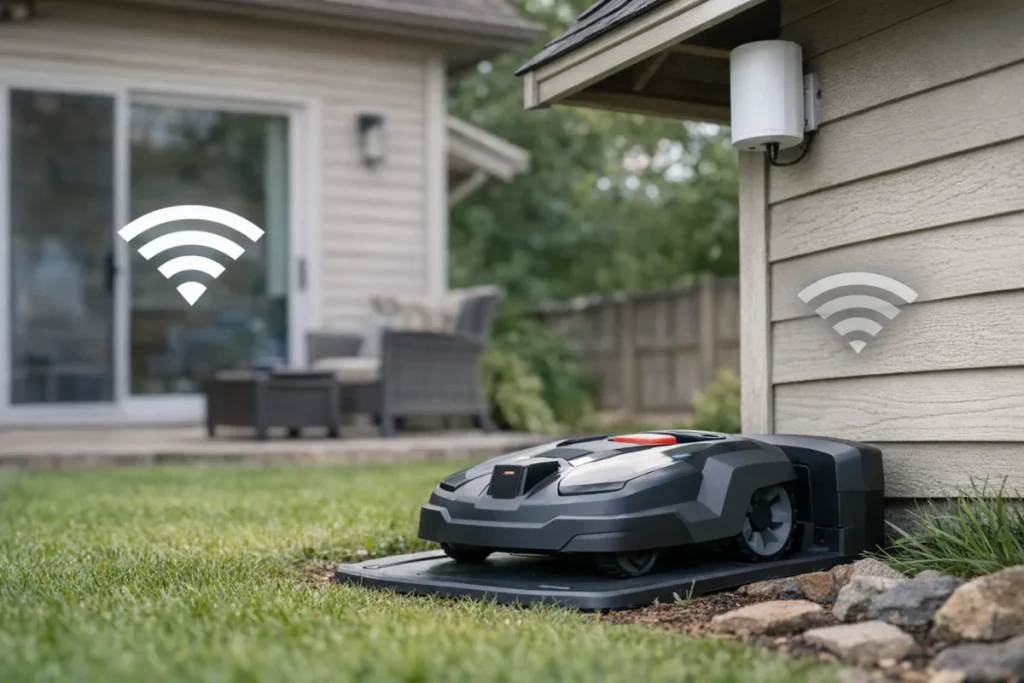
- Router range: test whether your phone has a usable Wi-Fi signal at the charging station, not just inside the house.
- Mesh systems: if you use mesh Wi-Fi, move through setup near the node that actually covers the yard side of the house.
- Hidden networks: temporarily broadcasting the network name can make setup easier if the app struggles to find it.
The charging station location can make or break app reliability. A dock tucked behind a shed, below a metal overhang, or at the far end of a side yard may be fine for mowing but weak for Wi-Fi. If you are still choosing a dock location, use the same practical thinking covered in our guide to the best robot mower charging station spot: access, drainage, docking alignment, and signal all matter.
Step 4: Separate Wi-Fi trouble from cellular or cloud trouble
Some robot mowers connect through Wi-Fi, some through cellular service, and some use more than one method depending on the model and feature. The app may also depend on a cloud account even when the mower is physically nearby. That means your home Wi-Fi can be healthy while the app still shows the mower as offline.
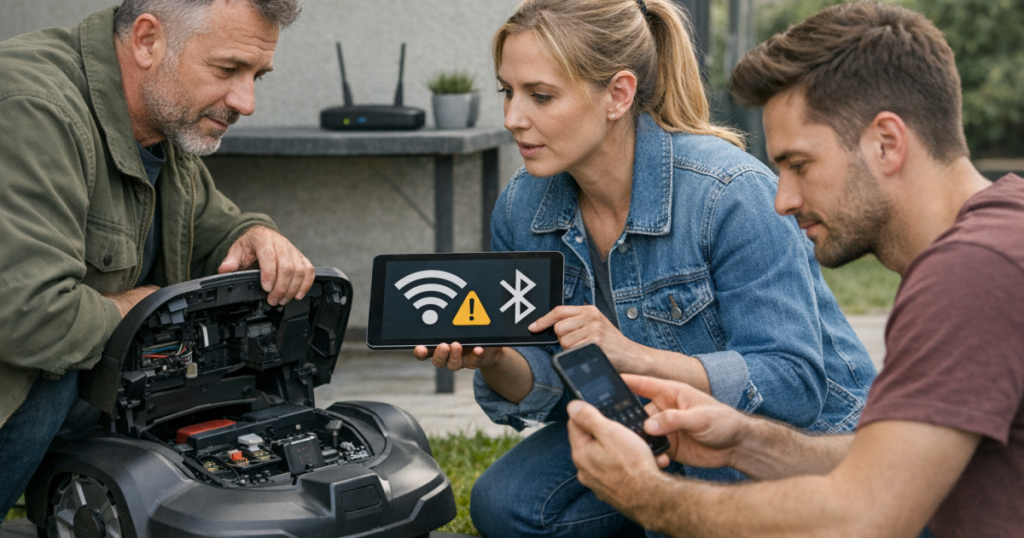
Check the app’s status message carefully. “No Bluetooth device found,” “Wi-Fi setup failed,” “server unavailable,” and “mower offline” point to different causes. Also check whether your mower model uses a cellular module or account-based remote access. Do not assume every connectivity feature is included for every model, region, or ownership setup; confirm it in the app, manual, or manufacturer account page.
If the mower works locally but not remotely, test from your home Wi-Fi and then from mobile data on your phone. If one works and the other does not, you are looking at a network or account path issue rather than a mowing problem.
Step 5: Look for account binding and ownership conflicts
Account binding is a common headache with used mowers, dealer-installed systems, household hand-me-downs, and phones changed midseason. The mower may still be linked to another account even though it is sitting in your yard and mowing correctly.
- Confirm you are signed into the correct brand account in the app.
- Check whether another family member originally registered the mower.
- Look for an ownership transfer, invite, or shared-user option in the app.
- If the mower was purchased used, ask the previous owner to remove it from their account before you attempt a reset.
- Keep proof of ownership available if manufacturer support needs to release an account lock.
For wire-free mowers that rely on mapping data, be cautious with ownership resets. Removing the wrong account or installation profile may mean you have to remap zones, no-go areas, or travel paths.
Step 6: Update the app, mower, and firmware carefully
Firmware updates can solve connection problems, but interrupted updates can also create confusing symptoms. Before starting an update, make sure the mower has adequate charge, is parked properly, and has a stable connection method available. Update the phone app from the App Store or Google Play first, then follow the mower app’s instructions for mower or station firmware.
If your connection problems appear after a long storage period, treat the mower like a seasonal startup rather than a random app failure. Batteries may be low, firmware may be behind, and account sessions may have expired. Our robot mower spring startup checklist covers the broader return-to-service routine before you chase one app message for an hour.
Step 7: For wire-free mowers, do not confuse app connection with navigation signal
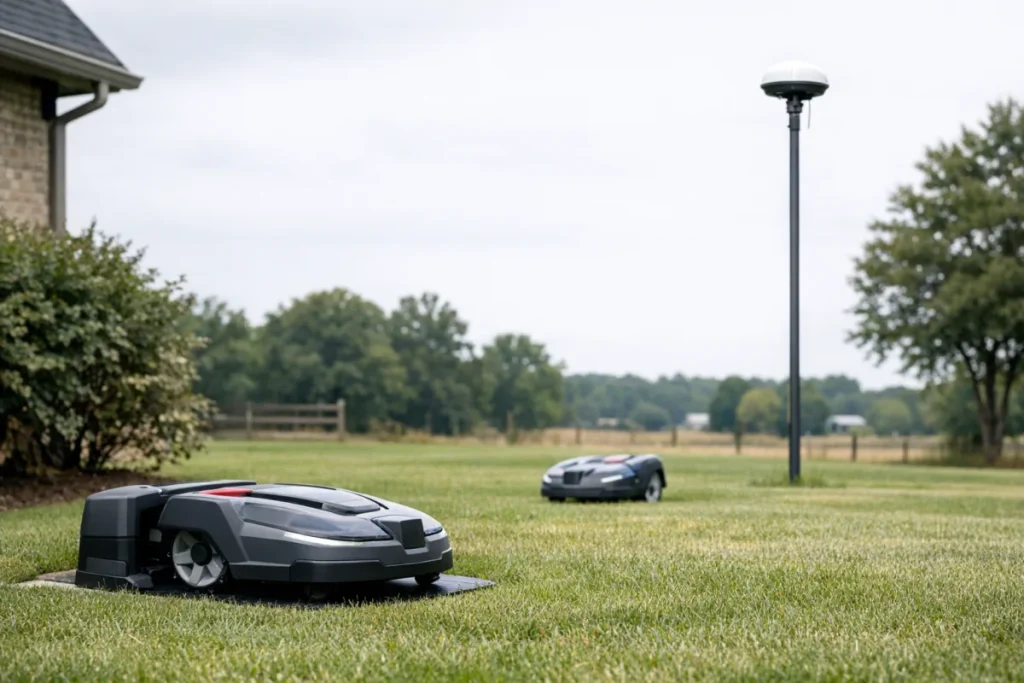
Wire-free mowers may use Bluetooth or Wi-Fi for app setup while relying on RTK, GPS, vision, LiDAR, or another navigation method to mow accurately. A mower can be connected to the app but still complain about positioning, or it can mow its saved route while the app is temporarily offline.
If the app connects but mapping fails, zones shift, or the mower repeatedly loses its positioning reference, troubleshoot the navigation system separately. For RTK-based systems, antenna placement is one of the first things to verify; the mower needs a stable reference signal, not just a strong phone connection. See our guide to RTK antenna placement for reliable robot mower mapping if your issue is mapping accuracy rather than app access.
When to reset network settings
Reset network settings only after you have checked phone permissions, Bluetooth pairing, Wi-Fi band, password, router range, account login, and updates. Use the app’s network reset option if available, because it is usually narrower than a full factory reset.
A full factory reset should be the last resort. Before doing it, read what the reset removes on your specific mower: saved maps, schedules, no-mow zones, installation data, paired users, or service records may be affected. If the app offers separate options for Bluetooth reset, Wi-Fi reset, map reset, and factory reset, choose the smallest reset that matches the problem.
Common questions
Why does my robot mower still mow when the app says offline?
The mower may already have its schedule, boundary, or map stored locally. App connectivity controls monitoring and changes, but it does not always control every mowing decision in real time.
Should I delete and reinstall the mower app?
It can help when the phone app is stuck, but try signing out and back in first. If you reinstall, make sure you know your account login and that the mower is not bound only to a different household member’s account.
Does poor Wi-Fi mean I need a different mower?
Not usually. First improve the router path, dock location, or setup process. If your yard layout puts the charging station far from the house, future mower shopping should include communication method and dock placement in the decision, not just cutting area and slope rating.
A calm order of attack
The fastest path is to troubleshoot from closest to farthest: phone permissions and Bluetooth, then Wi-Fi settings, then router range, then account binding, then cellular or cloud status, then firmware. That order matches how most homeowners actually use the mower: phone to mower, mower to dock or router, account to cloud, and finally remote control.
Once the connection is stable, make one change at a time and verify it before moving on. Robot mower ownership gets much easier when setup changes are repeatable, documented, and tied to the actual symptom rather than guesswork.